Table of Contents
You can publish brilliantly written content, earn dozens of high-quality backlinks, and have a perfect on-page SEO setup — and still fail to rank if your website is riddled with technical SEO errors. Technical issues operate silently in the background, preventing Googlebot from properly crawling, indexing, and understanding your site.
The most dangerous technical SEO problems are the ones you don't know about. This guide identifies the 10 most damaging issues, explains exactly why they hurt rankings, and tells you how to find and fix them.
🔧 Recommended ChafikTech Tool
Technical SEO problems don't just hurt rankings — they also reduce AdSense revenue. Slow loading pages cause users to leave before ads render. Indexing issues prevent traffic from reaching monetized pages. Use our AdSense Audit to identify technical and ad-placement issues in one place.
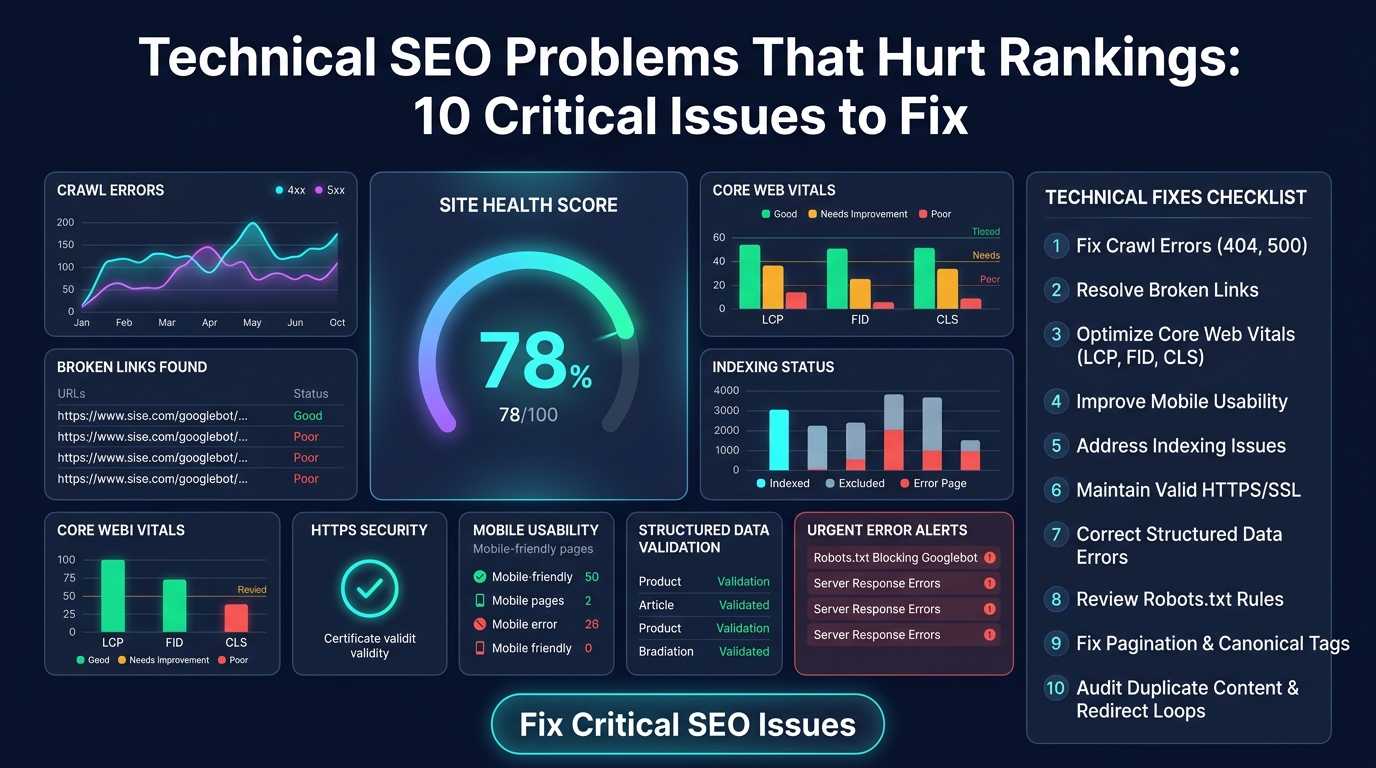
The 10 Most Damaging Technical SEO Problems
1. Pages Accidentally Blocked by robots.txt
A single incorrect line in your robots.txt file can block Googlebot from crawling your entire website. This is one of the most catastrophic SEO mistakes and the most commonly made after a server migration or CMS update. Check it immediately: navigate to yourdomain.com/robots.txt and verify that Disallow: / does not appear under User-agent: *.
How to find it: Google Search Console → Settings → robots.txt. Also use Google's robots.txt Tester tool.
2. Noindex Tags on Important Pages
A <meta name="robots" content="noindex"> tag tells Google explicitly not to include that page in search results. These are added intentionally to pages like admin dashboards and private user portals, but they frequently appear on live pages by accident — particularly on WordPress sites where a "Discourage search engines" checkbox was accidentally left checked.
How to find it: Google Search Console → Coverage → Excluded → "Excluded by 'noindex' tag."
3. Redirect Loops and Redirect Chains
A redirect loop occurs when Page A redirects to Page B, which redirects back to Page A, creating an infinite loop. A redirect chain occurs when A → B → C → D, with multiple hops before reaching the final URL. Both waste crawl budget and dilute link equity. Chains longer than 3 hops should be collapsed into a direct single redirect.
How to find it: Screaming Frog SEO Spider → Reports → Redirects. Look for 3XX chains longer than one hop.
4. Duplicate Content and Missing Canonical Tags
Duplicate content happens when substantially similar content exists on multiple URLs (e.g., both www.domain.com/page and domain.com/page). Google doesn't know which version to rank, often ranking neither well. Canonical tags (<link rel="canonical">) solve this by designating the "master" URL. Without them, especially on e-commerce sites with faceted navigation, thousands of near-duplicate pages can be inadvertently created.
5. Broken Internal Links (404 Errors)
Every 404 error from an internal link wastes a unit of crawl budget and delivers a poor user experience. After a site restructure or when deleting old articles, internal links that pointed to those old URLs become "dead ends." Run a monthly crawl with Screaming Frog to identify all internal 404 errors and either update the link destination or implement a 301 redirect.
6. Failed Core Web Vitals Assessment
Since Google's Page Experience update, failing LCP, INP, or CLS thresholds on Mobile is a direct ranking suppression signal. Websites with "Poor" scores on mobile Core Web Vitals consistently rank below competitors with equivalent content quality who pass the assessment. Check your status under Core Web Vitals in Google Search Console.
7. Missing or Incorrect Structured Data (Schema Markup)
Incorrectly implemented Schema Markup (structured data) can cause Rich Results (FAQ boxes, star ratings, breadcrumbs) to disappear from your SERP listing. More seriously, Schema with errors can trigger a manual review. Always validate your structured data using Google's Rich Results Test before publishing.
8. Crawl Budget Waste on Low-Value Pages
For small sites, crawl budget is not usually a concern. But for blogs with 500+ articles, Googlebot spending time crawling tag archives, pagination pages, search result pages, and printer-friendly versions means it has less time to crawl your valuable content pages. Noindex low-value URLs and add a ?page=2 canonical to paginated series.
9. Mixed Content Warnings (HTTP Assets on HTTPS Pages)
When your site is HTTPS but loads images, scripts, or stylesheets via HTTP, browsers display a "Not Fully Secure" warning. While this does not directly tank rankings, it causes browser warnings that increase bounce rates and erodes user trust — an indirect negative signal to Google.
10. Orphan Pages with Zero Internal Links
An orphan page has no internal links pointing to it. Google discovers pages by following links. If no page on your site links to a specific article, Googlebot may never find it — or find it so infrequently that it becomes deprioritized in the index. Every published page should have at least 2–3 internal links pointing to it.
| Issue | How to Find It | Fix |
|---|---|---|
| robots.txt Block | robots.txt Tester in GSC | Edit robots.txt to remove incorrect Disallow rules |
| Noindex on live pages | GSC Coverage → Excluded by noindex | Remove meta noindex tag from the affected page |
| Redirect loops/chains | Screaming Frog → Redirects report | Update redirect to point directly to final URL |
| Duplicate content | Screaming Frog → Duplicate Pages | Add canonical tag to specify preferred URL |
| Broken internal links | Screaming Frog → Response Codes → 4XX | Update link or 301 redirect the dead URL |
| Failed Core Web Vitals | GSC → Core Web Vitals report | Optimize images, defer JS, fix layout shifts |
Technical SEO Issues by Severity
| Technical Issue | Impact on Rankings | How to Identify It |
|---|---|---|
| Accidental No-Index Tags | Fatal (Pages de-indexed) | Search Console "Excluded" Report |
| Broken Internal Links (404s) | High (Loss of PageRank) | Screaming Frog or Ahrefs Site Audit |
| Failing Core Web Vitals (LCP) | Medium (Ranking penalty) | PageSpeed Insights / GSC |
| Missing XML Sitemap | Low (Slows down discovery) | Check yourdomain.com/sitemap.xml |
Common Troubleshooting Mistakes
- Ignoring Canonical Tags: If you have an e-commerce site and multiple URLs point to the same product (e.g., due to color filters), failing to use canonical tags will result in duplicate content penalties.
- Over-relying on Plugins for Speed: Simply installing a caching plugin does not fix a fundamentally slow WordPress theme or cheap, overloaded shared hosting.
Best Practices for Maintenance
- Perform Monthly Crawls: Use a tool like Sitebulb or Screaming Frog to crawl your site once a month to catch 404 errors and broken redirect chains before Google does.
- Monitor GSC Daily: Set up email alerts in Google Search Console so you are immediately notified if there is a spike in 5xx server errors or mobile usability issues.
💡 Revenue Impact of Technical Fixes
Fixing technical SEO issues often results in a 10-20% boost in organic traffic across the entire site. Calculate how much that traffic bump is worth using the Website AdSense Calculator.
Frequently Asked Questions
site:yourdomain.com in Google to see the approximate number of indexed pages. Compare this to your total published page count to find any indexing gap.Conclusion
Technical SEO problems are uniquely damaging because they operate invisibly. Your traffic can silently bleed away for months due to a single incorrect redirect or an accidental robots.txt disallow rule. Make monthly technical audits a non-negotiable part of your SEO workflow. Combined with great content and a growing backlink profile, a technically clean website gives Google every reason to rank you as high as possible. For publishers, technical health also maximizes the number of ad impressions delivered — check your setup with the AdSense Audit Tool.